Why do you think the PITFT50 offered by Amazon is the TFT35?
I have several of the PITFT50 and they work fine in KlipperScreen when attached to a Raspberry Pi 4B host.
As far as I know, the TFT35 is not supported by Klipper as it would have to be connected to a controller and the Klipper controller firmware does not support the touch screen/graphics. It is to be used in printer with traditional firmware.
I have the same BTT tft 35 spi screen but I have the skr mini e3 v3 board. I’m running Klipper off a BTT CB1 and PI4b adapter. I’m not sure exactly how to hook this up. I guess I’ll have to order the IO2adapter interface. I was hoping there would be a way without it but I don’t think so. Any suggestions would be great. Thanks
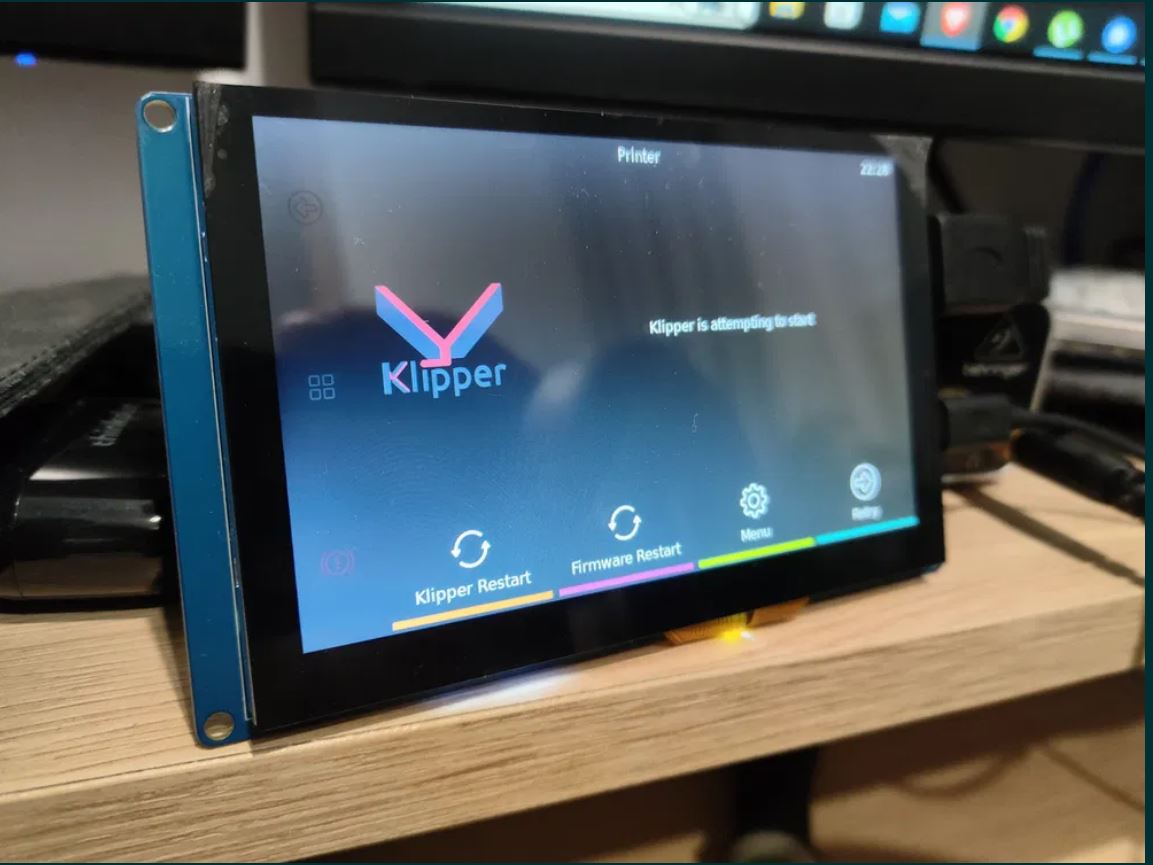
Generic Chinese 5" Screen, pretty low form factor with Pi mounts on the back.
It’s a bit of a process, but it’ll work in the end. The below instructions will install the drivers correctly and rotate the screen 180.Leave out the #Rotate Screen# section if you don’t need it.
#change wpa supp right after writing the OS to the SD card#

#Install SD card into Pi and boot up, allow Pi to connect to network#

#SSH to Pi#

#run driver install #
git clone https://github.com/goodtft/LCD-show.git
sudo chmod -R 755 LCD-show
cd LCD-show/
sudo ./LCD5-show

#rotate display 180#
cd LCD-show/
sudo ./LCD5-show 180

#Install Kiauh

sudo apt-get update && sudo apt-get install git
&& git clone https://github.com/dw-0/kiauh.git

#Install KlipperScreen with Kiauh
./kiauh/kiauh.sh

#paste last part of the below mainsail config into config.txt, all the way at the end#

####################################################
####     MainsailOS specific configurations     ####
####################################################
####      DO NOT CHANGE SECTION BELOW !!!       ####
####   UNLESS YOU KNOW WHAT YOU ARE DOING !!!   ####
####################################################

## For more options and information see
## https://www.raspberrypi.com/documentation/computers/config_txt.html
## Some settings may impact device functionality. See link above for details

## For additional information about device filters see
## https://www.raspberrypi.com/documentation/computers/config_txt.html#model-filters


[pi0]
## This affects Pi Zero(W) and Pi Zero2
## Due lag of RAM, limit GPU RAM
gpu_mem=128

[pi2]
gpu_mem=256

[pi3]
## Use 256 if 1Gb Ram Model!
gpu_mem=128
# gpu_mem=256

[pi4]
## Do not use more than 256Mb on Pi Model 4, it uses its own Management.
gpu_mem=256

[all]

## SPI Interface is enabled by default for Input Shaper
## This colides with Hyperpixel Display!
## Hyperpixel Screen uses the same Pin for Backlight.
dtparam=spi=on


## Enable Hardware UART for Serial Communication
## This also disables Bluetooth!
enable_uart=1
dtoverlay=disable-bt

## Enable I2C by default.
## This is used by Klipper's Host MCU
## See https://www.klipper3d.org/RPi_microcontroller.html#optional-enabling-i2c
## for destails.
## For MPU Accelrometer please use
## dtparam=i2c_arm=on,i2c_arm_baudrate=400000
dtparam=i2c_arm=on


### EXPERIMENTAL - Enable 64bit Kernel
### The 64-bit kernel will only work on:
### Raspberry Pi 3, 3+, 4, 400, Zero 2 W and 2B rev 1.2
### and Raspberry Pi Compute Modules 3, 3+ and 4.
# arm_64bit=1

####################################################

#Run:

sudo mv /usr/share/X11/xorg.conf.d/99-fbturbo.conf ~
THIS screen worked out of the box with KlipperScreen. No instructions were included, but it appears to be a clone of the Waveshare 7" HDMI touch panel.
Hi! I tried to follow the instruction on the link but then it ended up preventing my Raspberry Pi from booting into KlipperScreen. Everything was working fine before I tried to install the drivers and now it does not boot up to KlipperScreen at all anymore and just goes straight to the Raspberry Pi command line. Is there anything I did wrong?
Sorry if this is a dumb question… Where, or what file, did you add this code to? Plugging it in, makes it work just fine in portrait mode. Tried:
Section “Monitor”
Identifier “HDMI-2”
# This identifier would be the same as the name of the connector printed by xrandr
# for example “DVI-I-1 connected primary” means that the identifier is “DVI-I-1”
# another example “Unknown19-1 connected primary” some GPIO screens identify as Unknown19
Option "Rotate" "Right"
# Valid rotation options are normal,inverted,left,right

#Option "PreferredMode" "1920x1080"
# May be necesary if you are not getting your prefered resolution.
EndSection
Was able to rotate screen, but the touch I couldn’t get to rotate.
Apologies to be responding to a very old post but I felt it was worth mentioning that I was able to get this screen working without all the fiddling (which I used to do, annoyingly) after I installed a firmware update that waveshare posted at some point after I gave up using it reliably. While the firmware is to enable adjusting screen brightness through software, it seems to have ironed out the EDID, or whatever, issues common with this screen, at least in my recent experience. Firmware is in the link under Method
You do need the more recent version of the screen with the touch rotation and power buttons (two closely stacked vertically to each other), I wasn’t aware of an earlier model, I bought this one in 2019 I think. As far as I can tell, there’s only an EXE to install the firmware, so Windows access also.
Also to note they’ve added a good bit of extra info in this wiki since last I visited it. I can say that I now have this amoled working after basic rotation setup. Smooth scrolling, too. Maybe this is updates from KlipperScreen recently, but I did try it during a new install and it was up to the same issues pre-firmware update in summer '24. This is on a debian 12 installation as well, MiniPC, but the issues were identical to a raspi4 it used to live on before I migrated to the miniPC, so I cannot say if the same will work on debian 11 if anyone’s using that, nor 100% confirm it’s a raspi fix yet, but I will test and report. Since it’s an easy firmware update, figured it’s worth a shot to anyone with the screen. I hope this helps.
Be sure to edit config.txt! Visit the website on the included card, and follow the instructions on the site to get it configured and running. I thought it was just marketing and didn’t read the card at first. So ya, I lost a day of troubleshooting until I realized it included important instructions. But here’s a summary of what you need to do:
And then, if you want to rotate the display like I did, you will install the LCD-show driver and use that to rotate the display. I’m not sure why you can’t just use a different display_rotate value in the config above, but the following commands worked for me:
I set it to 180 instead of 90. You can also use 270 depending on your desired orientation.
Note- This screen requires both an HDMI output and a USB data connection. Depending on your model of Raspberry Pi, this could add to the saturation of your USB channels. I have a rpi 3B+ and when I run a timelapse at greater than 640x480, I experience frequent “Lost communication with the MCU” errors that cause my print to fail mid-print. Hard to confirm as nothing definitive in the logs, but my going theory is that the USB channel gets flooded to the point that it drops the critical connection to the MCU. This is solved in a variety of possible ways: 1) Set a low resolution and framerate for Timelapse. (eg 640x480, 10fps). 2) Turn off timelapse. 3) Disconnect the HDMI and USB for the touchscreen when running a higher res timelapse 4) I have a hypothesis that a newer model rpi will also fix this problem. I plan to upgrade and test this theory soon.
Final note- 7 inches actually feels a little oversized for a 3D printer control. It’s more resolution than I need for Klipperscreen, and a smaller screen would be easier to mount and work around. If I were to do it again, I might shoot for a 5-inch touchscreen with a DSI connection, for example, one of these:
This is not KlipperScreen specific, but I am posting it for the benefit of others who may be struggling to get the Waveshare 4.3" DSI IPS screen to work with recent releases of Pi OS.
Older versions of this screen use Waveshare touch controller (translator) chip WSTPA0 (ex. date code 2015) that is not completely compatible and will not function with the vc4-kms-v3d overlay.
For those screens, either the deprecated vc4-fkms-v3d overlay has to be used for touch to be functional, or a replacement WSTPA0 chip with date code 2451 or newer needs to be sourced from Waveshare and soldered onto the display PCB.
Hi,
I have an Orange pi 3b with bookworm server on board i attached to It a btt HDMI 5.0 v.2.1 and the monitor turns on but remain black.
Is there something wrong with config?
I’m at the point of buying a BTT Pi TFT50. Does DPMS or sleep mode work correctly with this v2.1 screen? I’ve been reading different things, but they’re from more than a year old ago.
I just would like the screen to go to sleep when not in use and maybe wake up after touching it?



 Hamtysan 10.1" HDMI Touchscreen Setup (with 180° Rotation)
 Required Packages
 Configure HDMI Resolution
 Align Touch Input with Rotated Screen